Troubleshooting
Common Issues
Build Fails: “West not found”
Solution 1: Ensure Python virtual environment is set up:
onsemi: West: Setup Python Environment
Solution 2: To set path to West manually, add the path to virtual environment containing West:
Go to
File → Preferences → Settings(or pressCtrl+,)Search for:
onsemi.venv.pathSet the value to the absolute path of your Python virtual environment folder (e.g.,
C:/workspace/zephyr/.venv)Close the settings
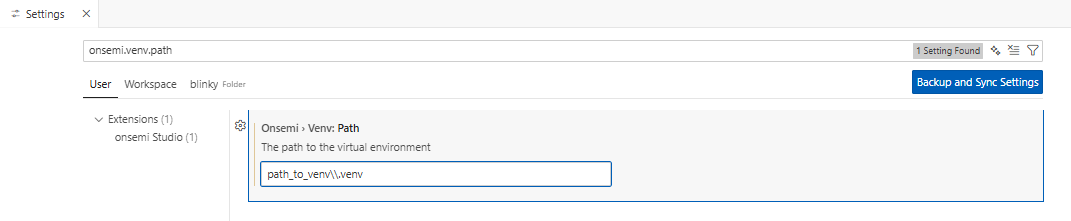
Fig. 15 Setting the virtual environment path in VS Code settings
IntelliSense Not Working
Solution 1: Refresh IntelliSense configuration:
onsemi: IntelliSense: Refresh configuration
Solution 2: Try switching provider:
onsemi: IntelliSense: Switch Provider
Debugging Fails: “No Active ELF File”
Solution: Ensure your project is built and ELF file is detected:
Build your project:
onsemi: Project: BuildCheck status bar for active ELF indicator
If not shown, manually select:
onsemi: Project: Select Active ELFOr rescan:
onsemi: Project: Rescan ELFs
Debug Configuration Not Found
Solution: Create a debug configuration using the Debug Configuration panel or manually create a launch.json file in the .vscode folder with a valid configuration.
Board Not Found
Solution: Update West workspace to fetch latest board definitions:
onsemi: West: Update Workspace
Toolchain Not Detected
Solution: Configure using the Configure Settings Panel UI (onsemi Studio Activity Bar → Configuration → Configuration Settings) or manually edit .vscode/settings.json:
{
  "onsemi.toolchain": "C:/path/to/toolchain"
}
Output Shows Certificate Errors
Solution: Configure custom certificate path:
{
  "onsemi.certificatePath": "C:/certs/corporate-ca.crt"
}
Or (not recommended):
{
  "onsemi.allowInsecureTls": true
}
J-Link GDB Server Not Found
Solution:
Verify J-Link software is installed
Add J-Link installation directory to system PATH
Or manually specify the path in Debug Configuration → Target Tab
Long Path Errors on Windows
Solution:
Enable “Copy Sample” option when importing applications
This copies the sample to a shorter path
Or enable long path support in Windows 10/11
West Commands Fail After Renaming Workspace
Solution:
If you manually rename the directory containing the .venv folder, West commands will fail because the virtual environment contains hard-coded paths.
To fix this:
Press
Ctrl+Shift+Pto open the Command PaletteRun:
onsemi: West: Set Repository Pathand select your renamed workspaceRun:
onsemi: West: Setup Python Environmentto recreate the.venvfolderRun:
onsemi: West: Install Python Packagesto install dependencies
Warning
Avoid renaming directories manually after setting up the workspace. If you must move or rename the workspace, use the commands above to recreate the virtual environment.